Starting Soon screens: how long, what to show, and how to set one up
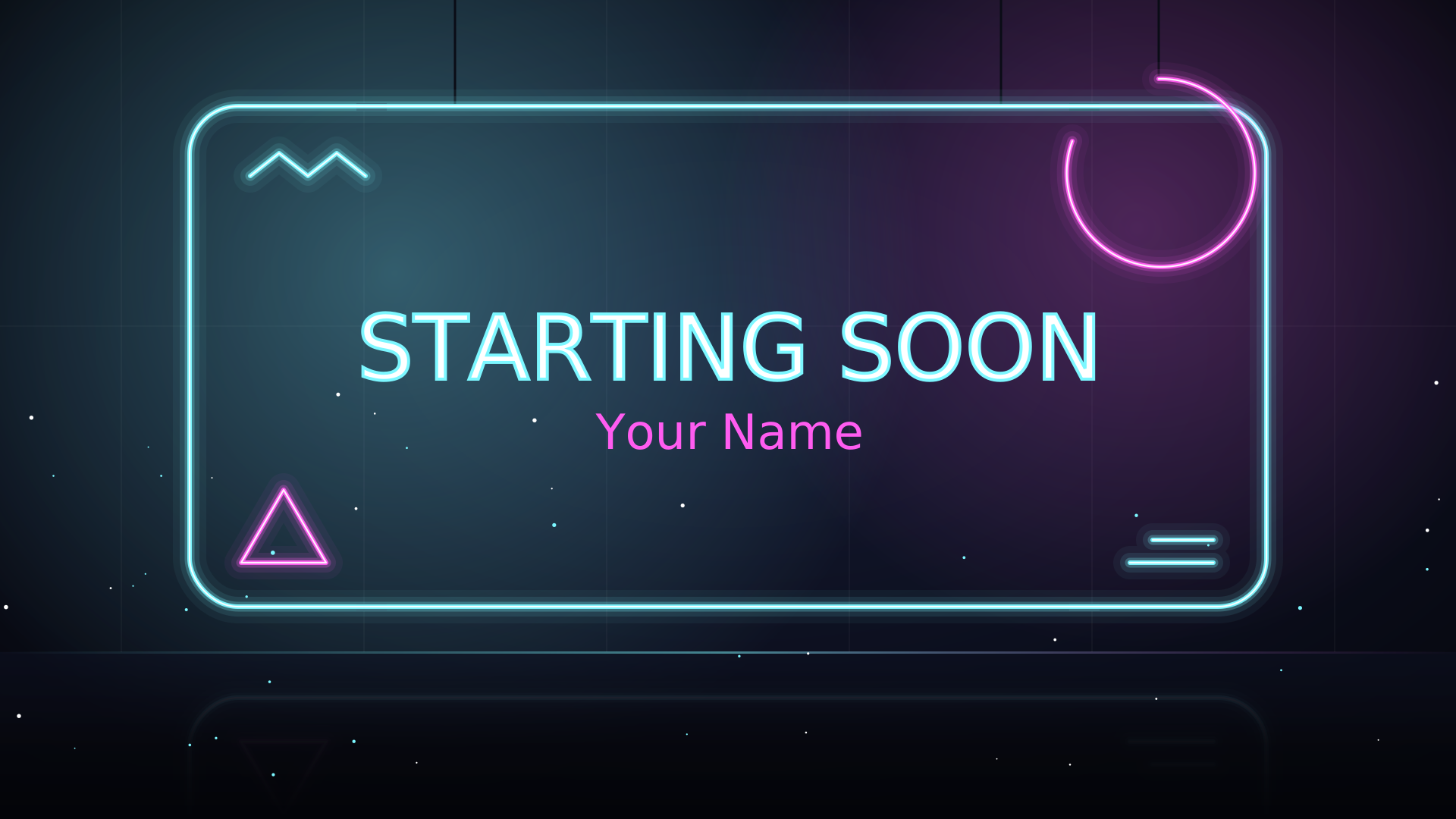
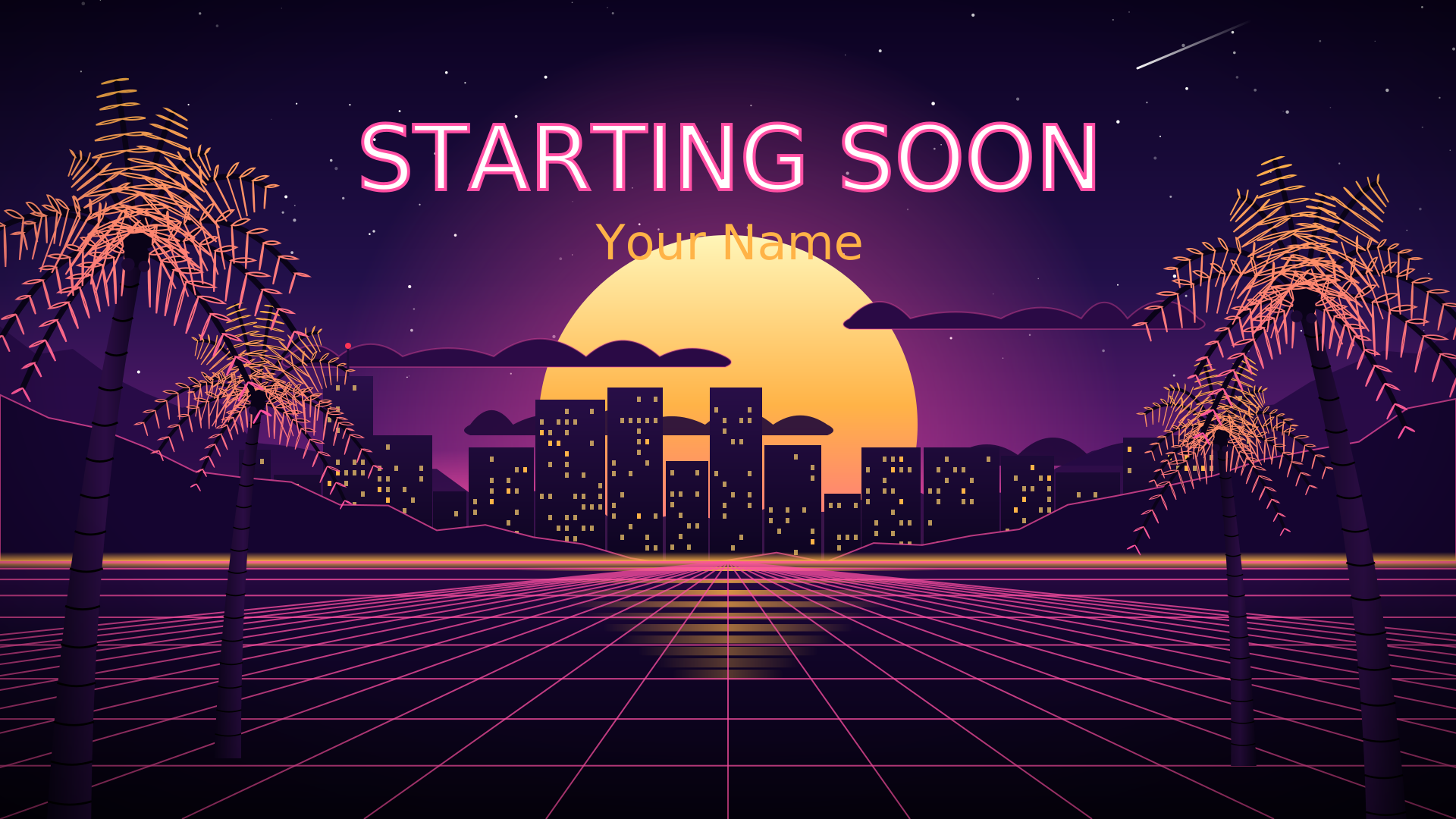
When you go live, your followers get a notification, and they arrive over the next few minutes, not all at once. A Starting Soon screen covers that gap. It tells early arrivals they’re in the right place and gives chat time to warm up before you start properly.
How long to run it
Three to ten minutes. Five is a good default: long enough for notifications to land, short enough that nobody wonders if something broke. Go shorter if you stream at the same time every day and your regulars are already waiting.
What to show
- Your name, big, so a new viewer knows whose channel this is.
- A countdown. People stay when they know how long they’re waiting.
- Today’s plan in one line: “Ranked to Diamond” or “Cozy farm day”.
- Your socials, for the viewers who’ll leave before you start.
- Sound. Silence makes people think the stream is broken. Play music you have the rights to stream.
Set it up with Scenqo
- Open the setup page, type your name, socials and a schedule line, and make your links.
- Copy the Starting Soon link. It counts down 5 minutes; add
&t=10to the end of the link for 10, or any number from 1 to 60. - In OBS, add it as a Browser Source at 1920 x 1080 and tick Refresh browser when scene becomes active, so the countdown starts again every time you switch to it.
- When it reaches zero it changes to “Live now”. Switch to your main scene and say hello.
Pair it with a Be Right Back screen for breaks and an Ending screen that points people to your next stream. Every Scenqo pack has all three, plus Just Chatting.
Mistakes that cost viewers
- Too long. Past ten minutes, people go somewhere else.
- Small text. Most viewers watch on a phone. If you can’t read it on a phone, it’s too small.
- Forgetting to switch. Put your main scene on a hotkey (Settings, Hotkeys) so starting is one key press.
- Not reading chat. Say hi to early arrivals by name, even while the countdown runs. It’s the cheapest way to keep them.
Scenqo packs are animated scenes you paste into OBS as links. First Light is free.