Help / Alerts and sounds
Scenqo sounds and colours in a StreamElements AlertBox
- Sign in to StreamElements and open Streaming tools, My overlays. Make a new 1920 x 1080 overlay (or open yours).
- Add a widget: Alerts, AlertBox.
- For each event (Follower, Subscriber, Cheer, Tip, Raid) open its settings, go to the sound option and upload the matching file from the sounds folder of your zip: follow.wav, sub.wav, bits.wav, donation.wav, raid.wav (gift.wav for gifted subs).
- Set the text colours to your pack’s two colours (Palm Night: #ff4fa3 and #ffb347, First Light: #7cf7ff and #ff5cf0) or the ones you chose.
- Save, copy the overlay URL (the link icon) and add it to OBS as a Browser Source at 1920 x 1080, with Control audio via OBS ticked.
- Press the emulate buttons in StreamElements to test each alert while OBS is open.
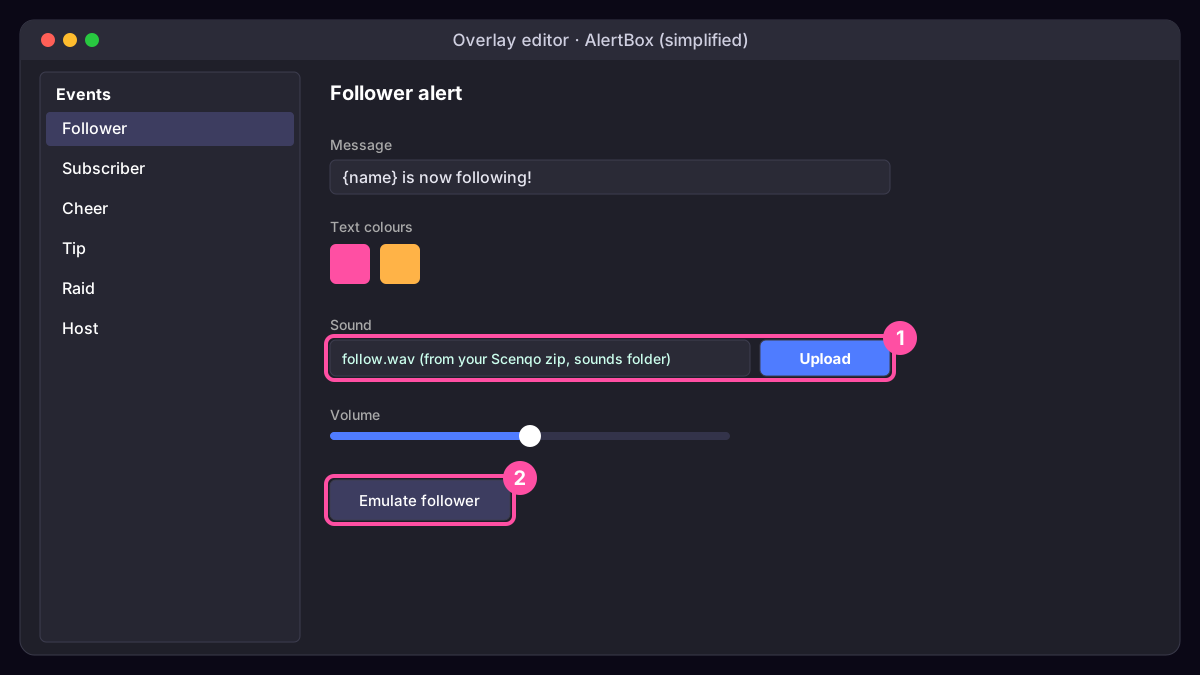
Every Scenqo sound is levelled to the same loudness, so one volume setting works for all of them. Start about 10 dB below your microphone.
Was this missing something? Tell us and we’ll add it.