Help / OBS Studio
Add a Scenqo scene to OBS Studio
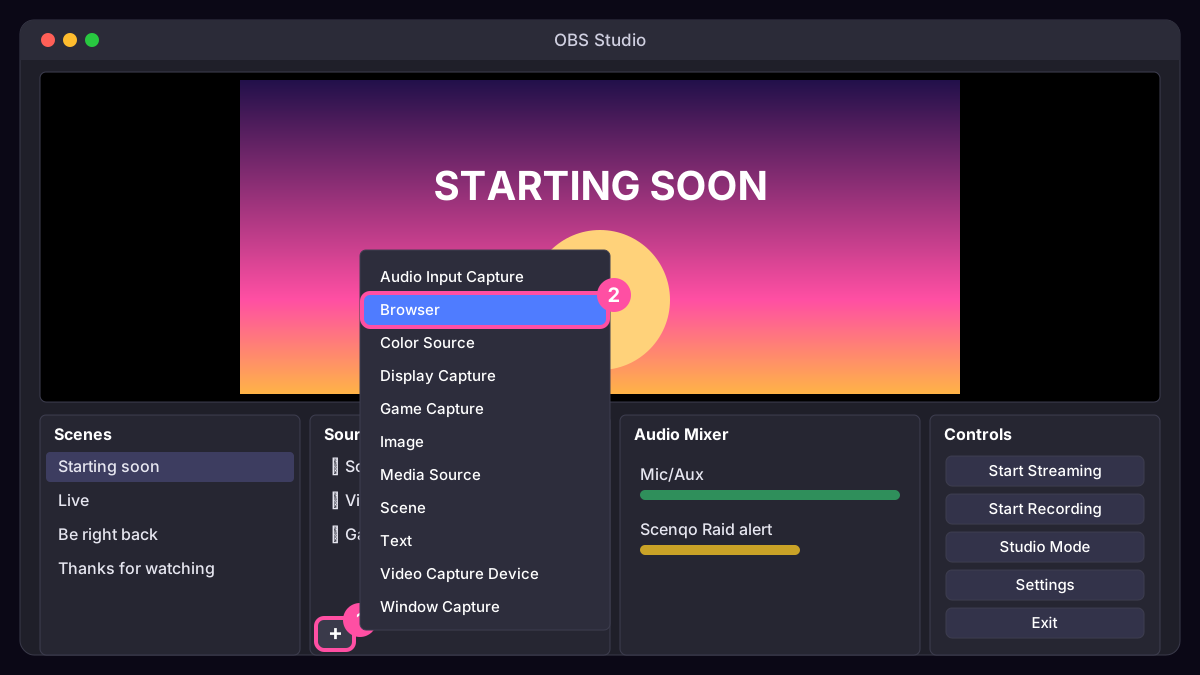
- Click the scene you want it in (in the Scenes dock, bottom left).
- In the Sources dock press + and choose Browser.
- Choose Create new, name it (for example “Scenqo Starting soon”) and press OK.
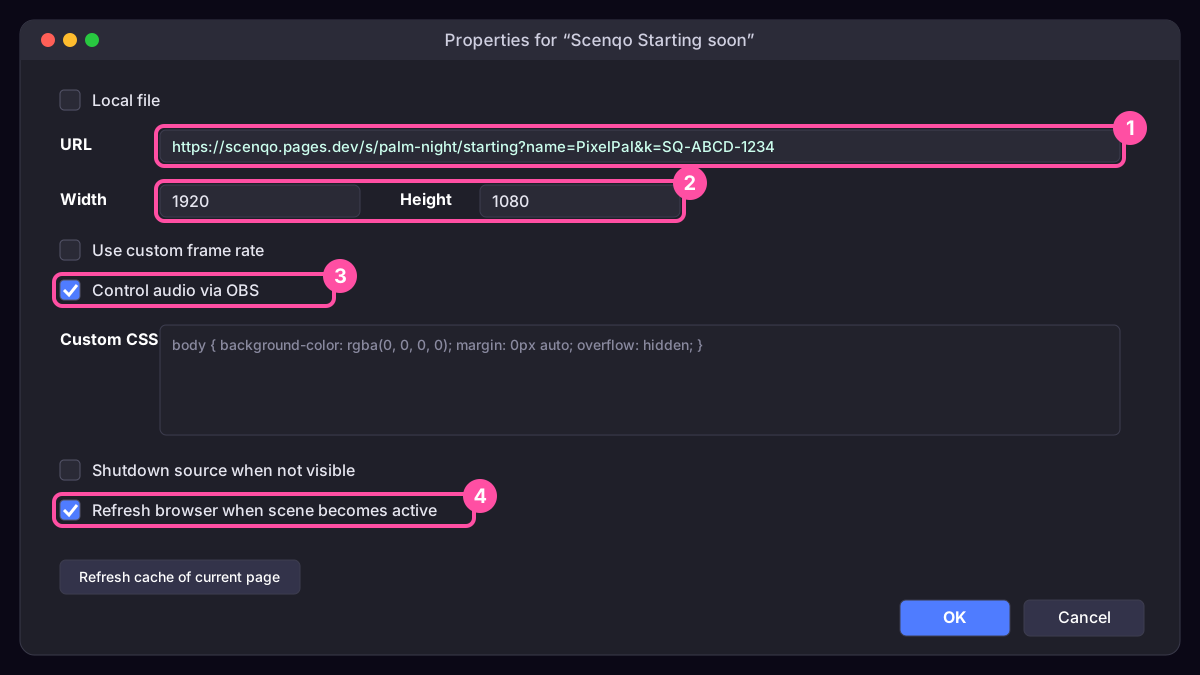
- Paste the whole link into URL. Links carry your name, colours and order key after the ?, so copy all of it.
- Set Width and Height to the size shown next to the link.
- For alerts tick Control audio via OBS. For the countdown, alerts and the transition tick Refresh browser when scene becomes active.
- Press OK. If it doesn’t fill the canvas, right-click it, Transform, Fit to screen.
| Scene | Browser source size | Tick |
|---|---|---|
| Starting Soon, Be Right Back, Ending, Just Chatting | 1920 x 1080 | Refresh browser when scene becomes active (restarts the countdown) |
| Webcam frame | 1280 x 720, then resize it over your camera | - |
| Socials bar | 1920 x 90, at the bottom of the canvas | - |
| 6 alerts | 1920 x 1080 | Control audio via OBS, and Refresh browser when scene becomes active |
| Transition | 1920 x 1080, at the top of each scene | Refresh browser when scene becomes active |
| Vertical scenes (links ending v=1) | 1080 x 1920 | As above |
Was this missing something? Tell us and we’ll add it.